Vendor Payouts Automation
Payout schedules, hold periods, approval batches and SEPA or PayPal payout files, on top of core vendor accounting.
Platforms
 CS-CartAdd-ons and themes for CS-Cart and Multi-Vendor
 OpenCartExtensions and themes for OpenCart 4 and 3
 WooCommercePlugins and themes for WooCommerce
 PrestaShopModules and themes for PrestaShop 8.2 and 9
 ShopifyApps with a free plan
Stores
Multi-Vendor · Advanced Commission Rules
Vendor plans give one commission per plan. Advanced Commission Rules adds the exceptions real marketplaces need: a negotiated rate for a key vendor, a lower rate on expensive electronics, volume tiers or a minimum fee per order.


The problem
Multi-Vendor sets commission per vendor plan, plus an optional percentage per category. As soon as you negotiate with a large vendor or run a launch promotion for a new category, you need a new plan or a manual correction.
Manual corrections are where marketplace accounting goes wrong: the vendor balance, the payout and the order page stop agreeing.
Advanced Commission Rules
In Vendors > Commission rules, combine up to 8 condition types: vendor, plan, category with subcategories, product, unit price, order subtotal, monthly vendor sales and dates.
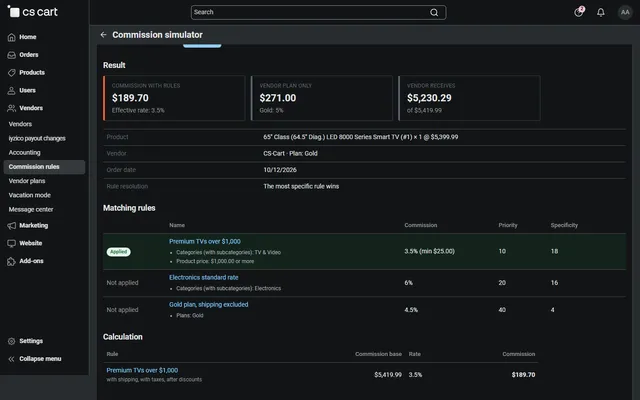
Pick a product and see which rule applies and why, before you save. Choose most-specific-wins or priority order.
New orders get the rule-based commission. Vendor balances, accounting, order pages and payment splits all use it; earlier orders never change by themselves.
Vendor, plan, category, product, price range, order subtotal, monthly vendor sales and date range.
A percentage plus a fixed amount per order, with a minimum and maximum commission.
Per rule: include or exclude shipping and taxes, before or after discounts.
The order page shows the calculation per rule and product; edits and refunds follow it.
Compare rule and plan commission, and export the report as CSV.
Vendors see a read-only page with the rates that apply to them.
Advanced Commission Rules
Core Multi-Vendor gives each vendor plan a percent plus a fixed fee, and the bundled Commissions by category add-on gives a percent per category and plan. For a young marketplace that is plenty. Then the first real deals arrive: a key vendor negotiates 8%, expensive electronics cannot carry the same rate as accessories, a new category needs a launch promo for six weeks, and high-volume sellers ask for a better tier.
Each of those can be forced into a new plan or a manual correction. Plans multiply, and corrections are how accounting drifts: the order page says one thing and the payout says another. Advanced Commission Rules lets you describe only the exceptions. A product without a matching rule keeps the plan commission or category rate exactly as before.
When a vendor order is placed, core calculates its commission as usual. The add-on then looks at every product in the order and picks one rule for it. Each rule contributes the sum of its products' bases times its percent, plus its fixed amount, limited by its minimum and maximum per order. Products without a rule contribute their core rate. The total never exceeds the order total, and the result is stored on the vendor payout, so the balance and Accounting need no special handling.
By default the most specific rule wins. Each condition scores points, shown in the rule list and the simulator:
| Condition | Points |
|---|---|
| Products | 32 |
| Categories | 16 |
| Vendors | 8 |
| Vendor plans | 4 |
| Product price | 2 |
| Order subtotal, vendor sales this month, order date | 1 each |
So an "Apparel 12%" category rule (16) beats an "ACME Corp 8%" vendor rule (8) for an ACME Corp jacket, while ACME Corp’s electronics get 8%. If you prefer a plain first-match list, switch the setting to lowest priority number. On a tie, the lower priority number wins, then the older rule.
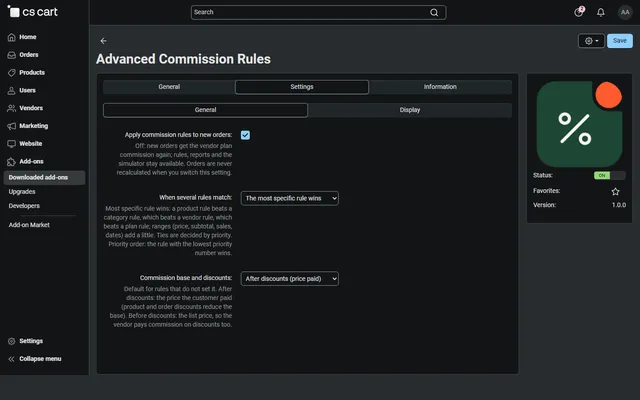
A rule replaces the plan commission for the products it matches, including the plan’s fixed fee. The plan fixed fee is charged only when at least one product in the order has no rule.
Before you save, the simulator shows the result for any product: commission with rules, what the plan alone would charge, what the vendor receives, and every matching rule with the applied one highlighted. Nothing is saved, and taxes are not simulated.
Creating, editing or deleting a rule affects new orders only. Vendors should never find that last month’s commission moved because someone tidied a rule. If you do want to apply current rules to earlier orders, the Recalculate orders tab previews up to 500 orders per run, then adds one Order changed entry per difference. Earlier entries are not rewritten, and running it twice changes nothing.
Edited orders are recalculated with the rules as of the original order date. On refunds through RMA, commission is returned at the order’s effective rate, and a full refund returns everything charged. Vendors see the calculation on their order pages and a read-only My commission rates page, unless you turn those off. Rule management is never available in the vendor panel.
The report lists every payout entry calculated by rules, with what the plan alone would have charged, and exports to CSV. That comparison tells you what each exception actually costs or earns.
| One plan per deal | Manual corrections | Rules | |
|---|---|---|---|
| Vary by category or price | Only by category percent | By hand | Yes |
| Volume tiers | No | By hand | Yes, on monthly vendor sales |
| Time-limited rates | No | By hand | Yes, date range |
| Order page matches payout | Yes | Often not | Yes |
| Upkeep | Plans multiply | Every period | Keep the rule list tidy |
If all your sellers really pay the same rate, you do not need this add-on: vendor plans are enough. It earns its place at the first exception you would otherwise fix by hand.
It pairs with Vendor Payouts Automation, which pays out the balance these rules produce, and with Commission Invoices & Vendor Statements for monthly invoices to vendors. See Advanced Commission Rules on the store.
Multi-Vendor 4.17.2 to 4.21.x on PHP 7.4 to 8.3, as your version supports. The bundled Vendor plans add-on must be active, which it is by default. Commissions by category is optional. Payment add-ons that split by the payout commission use the rule result. CS-Cart Standard and Ultimate refuse the installation.
CS-Cart
Commission rules on top of vendor plans: by vendor, plan, category, product, price, order subtotal, monthly sales and dates, with fixed fees, caps, a simulator and reports.
CS-Cart
The most requested products on this platform. Each one has its own page, and you can buy it straight on the sales site.
Payout schedules, hold periods, approval batches and SEPA or PayPal payout files, on top of core vendor accounting.
Decimal quantities with a unit, step, presets and price per kg or metre, with exact stock down to 0.001.
A Make an offer button with counter-offers, deadlines and a single-use agreed price; vendors answer their own offers.
Text, photo and choice fields on print areas with a live preview, server-rendered proofs and surcharges.
XRechnung, Factur-X/ZUGFeRD and Peppol BIS 3.0 e-invoices and credit notes from every order.
Up to three reminders, single-use coupons, one-click cart restore and recovered revenue per reminder.
Prices, licences, full documentation and instant downloads are on the store.
cs-cart.kaviolabs.com · 98 add-ons · 29 themes
FAQ
No. Products without a matching rule keep the plan commission and category fees. You only describe the exceptions.
No. Earlier orders are never recalculated by themselves. An explicit tool can recalculate selected orders, with a preview, by adding adjustment entries instead of rewriting history.
No. It has no core file changes, and uninstalling leaves earlier commissions intact.
Multi-Vendor and Multi-Vendor Ultimate 4.17.2 to 4.21.x.
Commissions by category sets one percent per category and plan. A rule can combine vendor, plan, category, product, price, order subtotal, monthly sales and dates, and add fixed amounts and caps. Products without a rule keep the category rate.
Yes. The simulator shows the commission with rules, the plan commission, the amount the vendor receives and every matching rule. Nothing is saved.
Vendors can see a read-only My commission rates page and the breakdown on their orders, unless you switch those off. They can never manage rules.
Use the condition Vendor sales this month. It counts the vendor’s orders placed earlier in the same calendar month, in statuses that count for payouts.
With Apply commission rules to new orders off, new orders get the plan commission again. Existing orders are not recalculated, and the rules, simulator and report stay available.
The product page has the full documentation, screenshots and the changelog.
Kavio Labs
The same standards, the same support desk and one licence portal on every platform we build for.