Vendor Payouts Automation
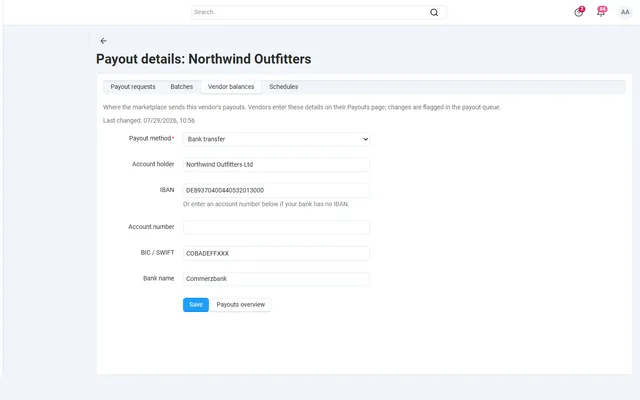
Payout schedules, hold periods, approval batches and SEPA or PayPal payout files, on top of core vendor accounting.
Platforms
 CS-CartAdd-ons and themes for CS-Cart and Multi-Vendor
 OpenCartExtensions and themes for OpenCart 4 and 3
 WooCommercePlugins and themes for WooCommerce
 PrestaShopModules and themes for PrestaShop 8.2 and 9
 ShopifyApps with a free plan
Stores
CS-Cart guide · Make an Offer
A Make an offer button next to Add to cart, a full negotiation with counter-offers and deadlines, and an agreed price that only that shopper can use, once. On Multi-Vendor, vendors answer offers on their own products.

The problem
CS-Cart has no way to negotiate a price. Shoppers who would buy at a lower price either leave or write an e-mail.
The e-mail usually ends in a manual order or a coupon that anyone can reuse, which leaks the deal to other shoppers.
Make an Offer
They choose options and quantity, click Make an offer and enter a price, on the product page or in quick view.
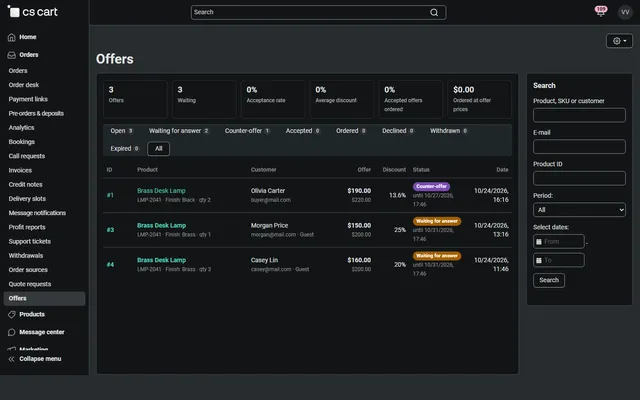
Accept, decline or counter in Orders > Offers. A hidden minimum price and auto-accept and auto-decline rules answer at once.
The customer replies from My offers or the e-mail link and adds the item to the cart at the agreed price, once and within the time limit.
For the selected options, variation and quantity.
Decide where offers are allowed, with a hidden minimum price and auto rules.
Counter-offers with rounds, messages, deadlines and e-mails at every step.
Single use, limited time, and clear rules for promotions and coupons.
Limits per customer, per product and per guest connection.
An offers list with statistics and CSV export; full page cache support.
Make an Offer
CS-Cart has no way to negotiate a price. A shopper who would buy at a lower price either leaves or writes an e-mail, and that thread ends in a manual order or a coupon anyone can reuse. Your public price stays high only until someone shares the code.
Make an Offer suits items where price is genuinely open: high-value goods, used or unique pieces, bulk quantities, end-of-line stock and marketplaces where sellers set their own margins. It is a poor fit for low-margin commodity items, where the time spent answering is worth more than the sale. You can limit it to the right products: rules work per product, category and vendor.
The cart checks the offer line on every calculation. The price comes from the database, not the browser, and the quantity is the offered quantity. Changing the options, passing the deadline or trying it from another customer’s account removes the line with a notice. An offer can be used for one order only, even from two browsers at once, and a failed or cancelled order gives it back while the deadline has not passed.
| Setting | Default | Effect |
|---|---|---|
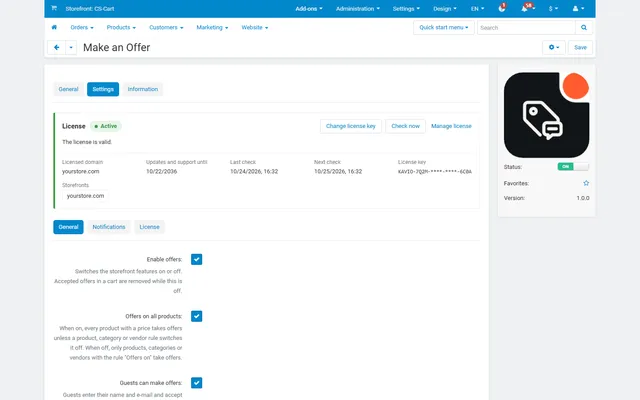
| Offers on all products | On | Off means only products, categories or vendors with an Offers on rule. |
| Auto-accept at | Empty | For example 90: offers at 90% or more of the current price are accepted at once. |
| Auto-decline below | 50% | Lower offers are declined at once with a polite e-mail. |
| Counter-offers per offer | 3 | 0 means accept or decline only. |
| Days to answer an offer | 7 | Pending offers expire after this. |
| Days to answer a counter-offer | 3 | The customer’s reply window. |
| Hours to buy at accepted price | 48 | After this the offer expires. |
| Maximum quantity per offer | 10 | Stock is always checked. |
Spam is limited by default: five open offers per customer, three offers per product in 30 days, one open offer per product and option combination, and 10 offers per hour from one guest connection.
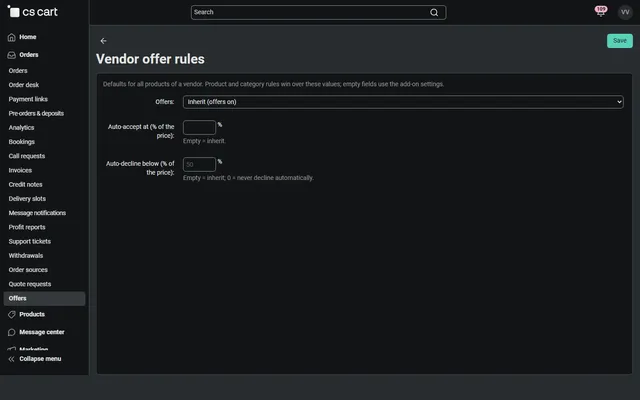
Each rule level, resolved product first, then the nearest category, then vendor, then global settings, can set the Offers switch and the percentages. A hidden minimum unit price is available on the product and wins over the percentages. Shoppers never see any of these values.
You choose. Offer price only (default) switches off cart promotions and coupons while the offer item is in the cart. Cart promotions and coupons keeps them. All promotions also applies catalog promotions on top. The price shoppers offer against already includes catalog promotions, so an offer never ends up dearer than the promo price.
On Multi-Vendor, vendors see Orders, Offers in their panel with offers on their own products only, and answer the same way. With the setting on, they set product rules and their own vendor defaults, so one seller can auto-accept at 85% while another reviews every offer. The marketplace administrator sees and can answer everything. Vendors cannot open or export other vendors' offers and cannot delete offers.
Statistics cards in the offers list show the acceptance rate, the average discount of accepted offers, how many accepted offers were actually ordered and the amount ordered. CSV export covers the filtered list.
| Coupon by e-mail | Make an Offer | Request a Quote | |
|---|---|---|---|
| Best for | One-off goodwill | One product at one price | Multi-product business deals |
| Who starts | You | Shopper names a price | Buyer asks, you price |
| Automatic answers | No | Yes | No |
| Price tied to one customer and order | Only if set up | Yes | Yes |
| Quantity breaks, attachments | No | No | Yes |
If your buyers are companies sending lists of SKUs, B2B Request a Quote is the better tool. The guide to Make an Offer settings goes through the figures that work for different margins. Get Make an Offer on the store.
CS-Cart and Multi-Vendor 4.17.2 to 4.21.x, PHP 7.2.5 to 8.3 as your version supports, and a theme based on Responsive, Bright or Nova. On Ultimate every storefront has its own settings. Products without a price never show the button, nor do common products of Common Products for Vendors or bookable products from Bookings & Reservations, since an offer has no date or time slot.
CS-Cart
Shoppers propose their own price for the selected options and quantity; you or the vendor accept, decline or counter, and the agreed price is enforced in the cart for one order with deadlines and hidden auto rules.
CS-Cart
The most requested products on this platform. Each one has its own page, and you can buy it straight on the sales site.
Payout schedules, hold periods, approval batches and SEPA or PayPal payout files, on top of core vendor accounting.
Commission by vendor, category, product, price or monthly sales on top of your vendor plans, with a simulator.
Decimal quantities with a unit, step, presets and price per kg or metre, with exact stock down to 0.001.
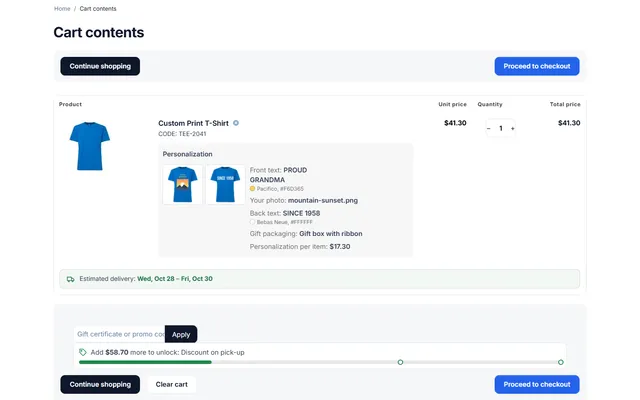
Text, photo and choice fields on print areas with a live preview, server-rendered proofs and surcharges.
XRechnung, Factur-X/ZUGFeRD and Peppol BIS 3.0 e-invoices and credit notes from every order.
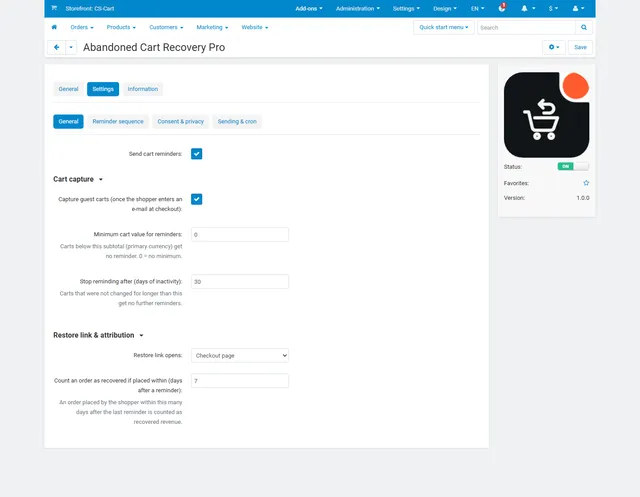
Up to three reminders, single-use coupons, one-click cart restore and recovered revenue per reminder.
Prices, licences, full documentation and instant downloads are on the store.
cs-cart.kaviolabs.com · 98 add-ons · 29 themes
Make an offer
Built natively for each platform, not ported. Each version has its own product page, documentation and price.
OpenCart
Shoppers propose a price; you accept, counter or decline, and the agreed price is applied once in the cart.
WooCommerce
A Make an offer dialog with counter-offers and hidden rules; the agreed price is enforced only in that shopper’s cart.
PrestaShop
A Make an offer button with negotiation rounds; the agreed price is a specific price bound to one cart.
Guide
Guide
Hidden minimums, auto-accept and auto-decline thresholds, deadlines and limits that keep offers profitable.
Read the guideFAQ
No. It is enforced on the server for the shopper who made the offer, single use and for a limited time.
Yes. Guests get signed e-mail links; signed-in customers also find their offers on My offers.
Vendors answer offers on their own products in the vendor panel.
Yes, including CS-Cart 4.21 full page cache.
No. The current price is computed on the server, and the agreed price is applied to the cart from the database on every calculation. Changing the quantity or options resets or removes the line.
Yes. Set a hidden minimum price on the product, or an auto-accept percentage in the settings, a category or a vendor. Shoppers never see these values.
The accepted offer expires after the buying window, 48 hours by default, and the customer gets an e-mail. A failed or cancelled payment gives the offer back while the time has not run out.
You choose in the settings: offer price only (default), cart promotions and coupons, or all promotions.
Yes. The offer is for the variation, options and quantity selected when the shopper clicks Make an offer, and the cart checks that the line still matches.
The product page has the full documentation, screenshots and the changelog.
Kavio Labs
The same standards, the same support desk and one licence portal on every platform we build for.