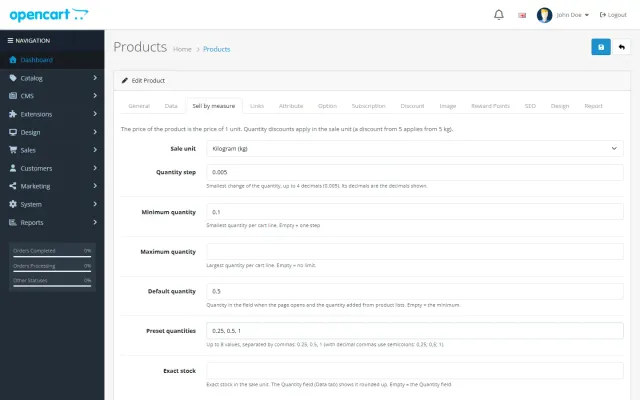
Sell by Weight & Length
Decimal quantities in 15 units, preset buttons, a live line total and exact decimal stock, on OpenCart 4 and 3.
Platforms
 CS-CartAdd-ons and themes for CS-Cart and Multi-Vendor
 OpenCartExtensions and themes for OpenCart 4 and 3
 WooCommercePlugins and themes for WooCommerce
 PrestaShopModules and themes for PrestaShop 8.2 and 9
 ShopifyApps with a free plan
Stores
OpenCart guide · Bulk Product Editor
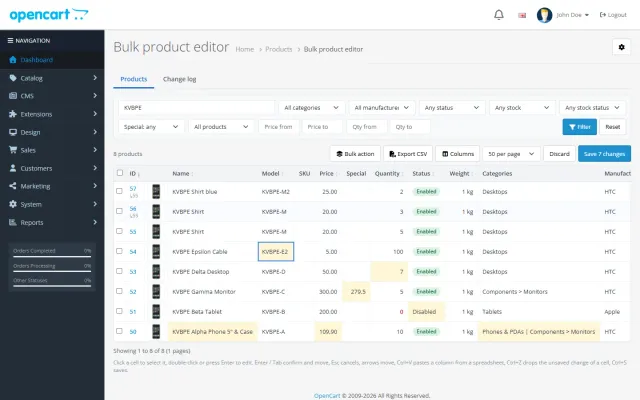
Change prices, specials, stock, status, model, SKU, weight, categories, manufacturer and option values right in the cells, then save them all at once. Bulk actions with a preview handle thousands of products, and every change can be undone.


The problem
OpenCart edits one product at a time. A price rise across a category or a new special for a customer group means opening and saving every product.
Import extensions are faster but blind: no preview, no conflict check and no way back if a column was wrong.
Bulk Product Editor for OpenCart
By name, model, SKU or ID, category, manufacturer, status, stock, active special, price or quantity range, and masters or variants on OpenCart 4.
Edit cells and paste columns from Excel or Google Sheets, or run a bulk action on the ticked products or every product that matches the filter.
See how many products change and the before and after values. Every save is logged with who, when and the old and new value, and can be undone.
Name, model, SKU, price, special, quantity, status, weight, categories, manufacturer and option values.
Set, increase or decrease by an amount or percentage, rounded to cents, whole numbers, .99 or .95.
Set fixed, % off or amount-off specials for a customer group, with dates; or remove them.
One page at a time from the server; bulk actions run in steps with a progress bar.
Values changed again since then are kept; the others are restored.
Values are validated, other people’s changes are never overwritten, and only users with modify permission can save.
Bulk Product Editor for OpenCart
OpenCart’s product form edits one product at a time. A price rise across a brand means opening every product, or exporting a sheet, which some extension must then import without damaging anything.
Bulk Product Editor turns Catalog, Bulk product editor into a spreadsheet. Click, type, use Enter, Tab and the arrow keys, paste a column from Excel or Google Sheets, and save it all at once. Paging and sorting run on the server, so it stays quick whether you have 50 products or 50,000.
Changed cells are highlighted until you save. A value someone else changed after you opened the page is never overwritten. OpenCart 4 variants follow their master product unless they override the field, just as they do in the product form.
| Field | Actions |
|---|---|
| Prices and weights | Set, increase or decrease by amount or percent; round to cents, whole numbers, .99 or .95 |
| Specials | % off, amount off or a fixed price for any customer group, with dates; remove specials |
| Stock | Set, increase or decrease product and option quantities |
| Status, manufacturer, out-of-stock status | Set |
| Categories | Add, remove or move |
| Names, models, SKUs | Find and replace, add text |
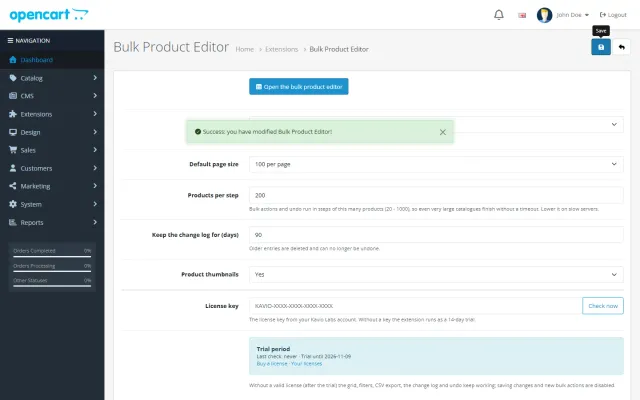
Apply to the ticked products or everything that matches the filter. The preview shows before and after first, and large jobs run in steps of 200 by default, adjustable from 20 to 1000, with a progress bar. Lower it on slow or shared servers.
Specials with dates per customer group are useful for campaigns: filter a category, apply 20% off for two weeks, and remove it afterwards in one action.
Every save and bulk action goes into a change log with the user, the time and the old and new value of each cell. One click undoes a change, and values changed again since then are kept. You can undo the undo, and interrupted actions can be continued. Entries are kept for 90 days by default.
CSV export covers the filtered or selected products, ready for Excel and Google Sheets. Note that the editor exports only; for scheduled supplier updates, see Scheduled Supplier Feed Import.
The editor follows user group permissions: access opens the grid read-only, and modify allows saving, bulk actions and undo.
| Product form | CSV import tool | Bulk Product Editor | |
|---|---|---|---|
| Whole catalog | No | Yes | Yes |
| Preview before saving | No | Varies | Yes |
| Undo | No | Restore a backup | Yes, per entry |
| Option quantities | Yes, one at a time | Varies | Yes |
| Create new products | Yes | Yes | No |
It is a good partner for large catalogs and theme kits: the Food, Axle and other store kits include it. See the packages, or get the Bulk Product Editor on the store.
OpenCart 4.0.2 to 4.1.x and 3.0.3 to 3.0.5, in separate packages under one licence. Tested on 4.1.0.4 and 3.0.5.1. OpenCart events only, with no core changes and no OCMOD patches. Thumbnails can be turned off for the fastest grid on very slow image storage.
A good habit is to run a bulk action on ten products first, check them on the storefront, and then apply it to the whole filter. If something is off, undo takes one click. Do not rely on the log as a backup, though. Keep normal database backups, as entries expire after your chosen period.
OpenCart
Spreadsheet-style product grid with inline editing, filters, bulk price, special, stock, status and category changes with a preview, a change log with undo and CSV export (OpenCart 4.x and 3.0.x).
OpenCart
The most requested products on this platform. Each one has its own page, and you can buy it straight on the sales site.
Decimal quantities in 15 units, preset buttons, a live line total and exact decimal stock, on OpenCart 4 and 3.
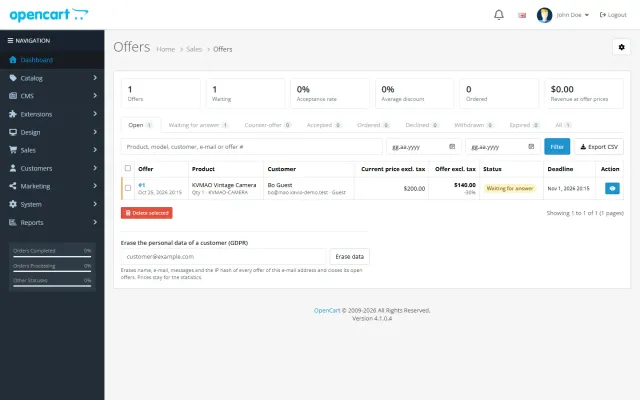
Shoppers propose a price; you accept, counter or decline, and the agreed price is applied once in the cart.
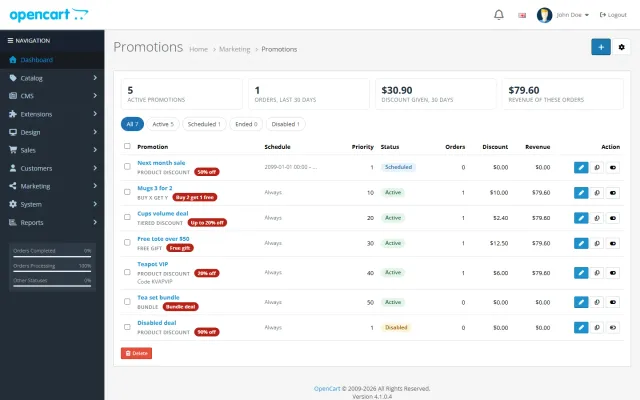
Buy X get Y, tiers, bundles, free gifts and scheduled campaigns with badges and cart nudges.
A grocery theme with aisle bubbles, stepper cards with unit prices, recipe add-all and a phone basket bar.
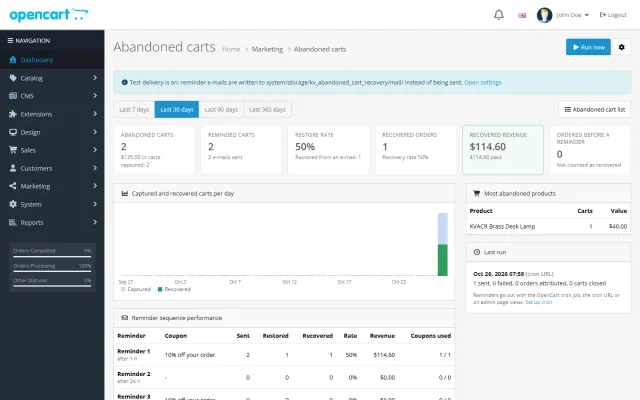
Up to three reminders, single-use coupons, a restore link and a recovered-revenue dashboard.
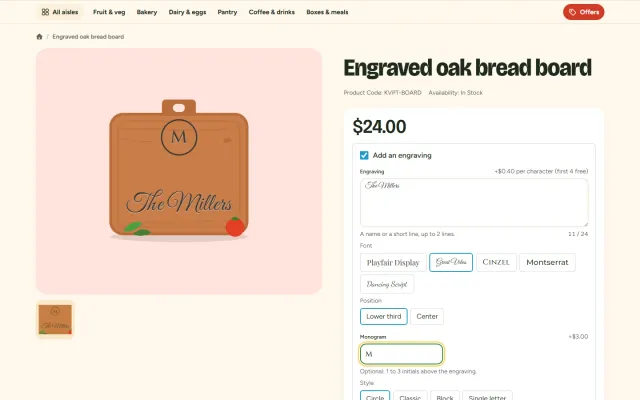
Names, dates and monograms previewed on the product photo, with fees, a word filter and a production sheet.
Prices, licences, full documentation and instant downloads are on the store.
opencart.kaviolabs.com · 16 extensions · 11 themes
Bulk product editor
Built natively for each platform, not ported. Each version has its own product page, documentation and price.
Edit the whole catalog in a spreadsheet grid, with mass actions, a preview, a change log and undo.
FAQ
The grid loads one page at a time and bulk actions run in steps (200 products per step by default), so catalogs with tens of thousands of products work.
Yes, while the change log entry is kept (90 days by default). Values changed again since then are kept, the others are restored.
No. Only specials. On OpenCart 4.1, where specials and discounts share one table, discount rows are left alone.
Yes. The grid, filters, export, change log and undo keep working; only saving and new bulk actions are disabled.
Yes. The quantity and price of every option value can be edited in the grid.
Yes: % off, amount off or a fixed price for any customer group, with start and end dates.
Yes. Variants follow their master product unless they override the field.
It follows user group permissions. Access opens it read-only, and modify allows changes.
The product page has the full documentation, screenshots and the changelog.
Kavio Labs
The same standards, the same support desk and one licence portal on every platform we build for.