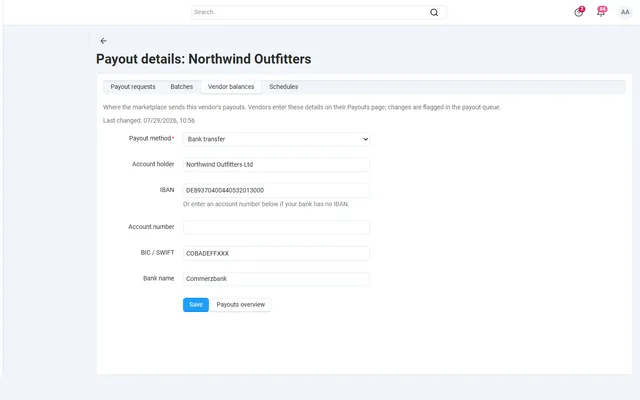
Vendor Payouts Automation
Payout schedules, hold periods, approval batches and SEPA or PayPal payout files, on top of core vendor accounting.
Platforms
 CS-CartAdd-ons and themes for CS-Cart and Multi-Vendor
 OpenCartExtensions and themes for OpenCart 4 and 3
 WooCommercePlugins and themes for WooCommerce
 PrestaShopModules and themes for PrestaShop 8.2 and 9
 ShopifyApps with a free plan
Stores
CS-Cart guide · B2B Request a Quote
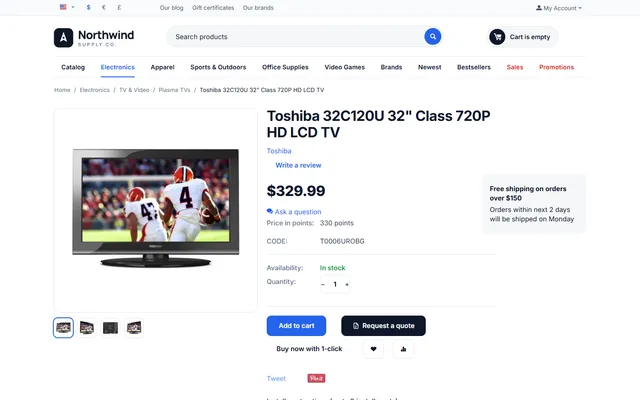
Business buyers send a quote list with company details, messages and files. You answer with prices, quantity breaks and a validity date, and the buyer checks out at the quoted prices, once. Quotes, messages and files stay in your store.


The problem
Business buyers rarely pay list price. They ask for a quote, and the negotiation runs in e-mail threads, spreadsheets and PDF offers.
Then someone has to turn the accepted offer into an order by hand, with the risk that the price does not match what was agreed.
B2B Request a Quote (RFQ)
They add products with options and quantities to the quote list and send it with company details, a message and files.
Set quantities, unit prices or discounts, quantity breaks, a validity date and a shipping note, and send the offer.
They accept, ask for changes or decline. Accepted offers go to checkout with shipping, taxes and payment as usual; quoted prices are checked on the server and can be ordered once.
Next to or instead of Add to cart, per store, category or product.
Hide prices from guests or any user group.
Unit price or discount, offered quantity and quantity breaks.
Automatic expiry, plus a shipping and delivery note.
Messages with attachments and internal notes on every request.
A request is split per vendor, and each vendor answers in its panel.
B2B Request a Quote (RFQ)
Business buyers rarely pay the list price without asking. They need a price for 500 units, a delivery date for the purchase file, or a document their manager can approve. In a standard CS-Cart store, that conversation moves to e-mail: no status, no owner, and a manual order at the end, typed in by someone who hopes the price was remembered correctly.
B2B Request a Quote keeps that conversation in the store. Quotes, messages and files stay with you, and there is no external service. Accepted offers go straight to the normal checkout, so shipping, taxes and payment work as they always do.
Without quantity breaks, the quoted quantity is fixed. With them, the buyer may order more, and the unit price follows the break. A quote is ordered as a whole, so remove a line before sending if the buyer only wants part of it. After the validity date the quoted lines leave the cart and the quote shows Expired; you can change prices and send it again at any time before it is ordered.
The default button sits next to Add to cart. Product and category settings can override it: next to Add to cart, instead of it (quote only), or not shown. A product setting beats its categories, and the add-on walks up from the main category to the store default.
| You want | Do this |
|---|---|
| Prices for signed-in customers only | Tick Guest in Hide prices from. Guests see Price on request and the quote button. |
| Trade prices hidden from the public | Tick the groups in Hide prices from. |
| Quotes for wholesale buyers only | Tick the group in Show the quote button to. |
| Quote only across the store | Set the default button to Instead of Add to cart. |
| No quotes on one category | Set Do not show on that category. |
Hidden prices only apply to products that have the quote button. A product set to Do not show keeps its price for everybody.
Attachments are on by default: five files per message, 5 MB each, in jpg, png, webp, pdf, txt, csv, xlsx, docx and zip. Scripts, HTML and SVG are always refused, file contents are checked, and files are stored outside the web root. Offers are valid for 14 days by default, and Print / PDF opens a clean page for the browser’s Save as PDF.
Catalog promotions do not lower quoted prices unless you switch that on. Cart promotions and coupons work as usual.
If the list holds products from several vendors, one quote per vendor is created, and the quote page links the related quotes. Each vendor answers in their panel, which keeps the marketplace team out of pricing it does not own. Turn that off and your administrators answer everything. Vendors can set the button option on their own products; category settings are for administrators.
| Contact form | Make an Offer | Request a Quote | |
|---|---|---|---|
| Several products | In free text | One per offer | Yes |
| Files and message thread | E-mail only | Messages | Yes |
| Quantity breaks | No | No | Yes |
| One click to checkout | No | Yes | Yes |
| Printable offer | No | No | Yes |
For B2C haggling on single items, Make an Offer is lighter. A full B2B setup usually adds Wholesale Price Lists for standing contract prices, B2B Registration & Approval for trade accounts, and B2B Net Terms & Credit Limits for payment on invoice. The B2B add-ons page covers how they fit together. Get B2B Request a Quote on the store.
CS-Cart and Multi-Vendor 4.17.2 to 4.21.x, PHP 7.4 to 8.3 as your version supports. The add-on works with the 4.21 full page cache, supports CAPTCHA add-ons on the guest form, has REST API access, and can be set per storefront on Ultimate. It also works alongside the Catalog mode and Call requests add-ons.
CS-Cart
Business buyers request a quote for several products; you answer with offer prices, quantity breaks and a validity date, and the buyer checks out at the quoted prices.
CS-Cart
The most requested products on this platform. Each one has its own page, and you can buy it straight on the sales site.
Payout schedules, hold periods, approval batches and SEPA or PayPal payout files, on top of core vendor accounting.
Commission by vendor, category, product, price or monthly sales on top of your vendor plans, with a simulator.
Decimal quantities with a unit, step, presets and price per kg or metre, with exact stock down to 0.001.
A Make an offer button with counter-offers, deadlines and a single-use agreed price; vendors answer their own offers.
Text, photo and choice fields on print areas with a live preview, server-rendered proofs and surcharges.
XRechnung, Factur-X/ZUGFeRD and Peppol BIS 3.0 e-invoices and credit notes from every order.
Prices, licences, full documentation and instant downloads are on the store.
cs-cart.kaviolabs.com · 98 add-ons · 29 themes
FAQ
Yes, with signed e-mail links. Registered customers also get My quotes.
No. Quoted prices are checked on the server and can be ordered once.
Yes, for print or PDF, plus e-mail and admin notifications with editable templates.
Yes. It supports full page cache, CAPTCHA and the REST API.
No. Quoted prices are enforced on the server, and a quote can be ordered once.
No. A quote is ordered as a whole. Remove a product from the offer before you send it if the customer only wants part of it.
Tick Guest in Hide prices from. Guests see Price on request and a Request a quote button; registered customers see prices and can buy.
In a private folder that is not reachable from the web, and they are only sent after an access check.
The product page has the full documentation, screenshots and the changelog.
Kavio Labs
The same standards, the same support desk and one licence portal on every platform we build for.